> For the complete documentation index, see [llms.txt](https://docs.suvvy.ai/en/llms.txt). Markdown versions of documentation pages are available by appending `.md` to page URLs; this page is available as [Markdown](https://docs.suvvy.ai/en/main-settings/shange-password.md).
# Сhange Password
Changing your password allows you to manage your account security. This feature is also useful if you need to update your login information.
## How to change?
{% stepper %}
{% step %}
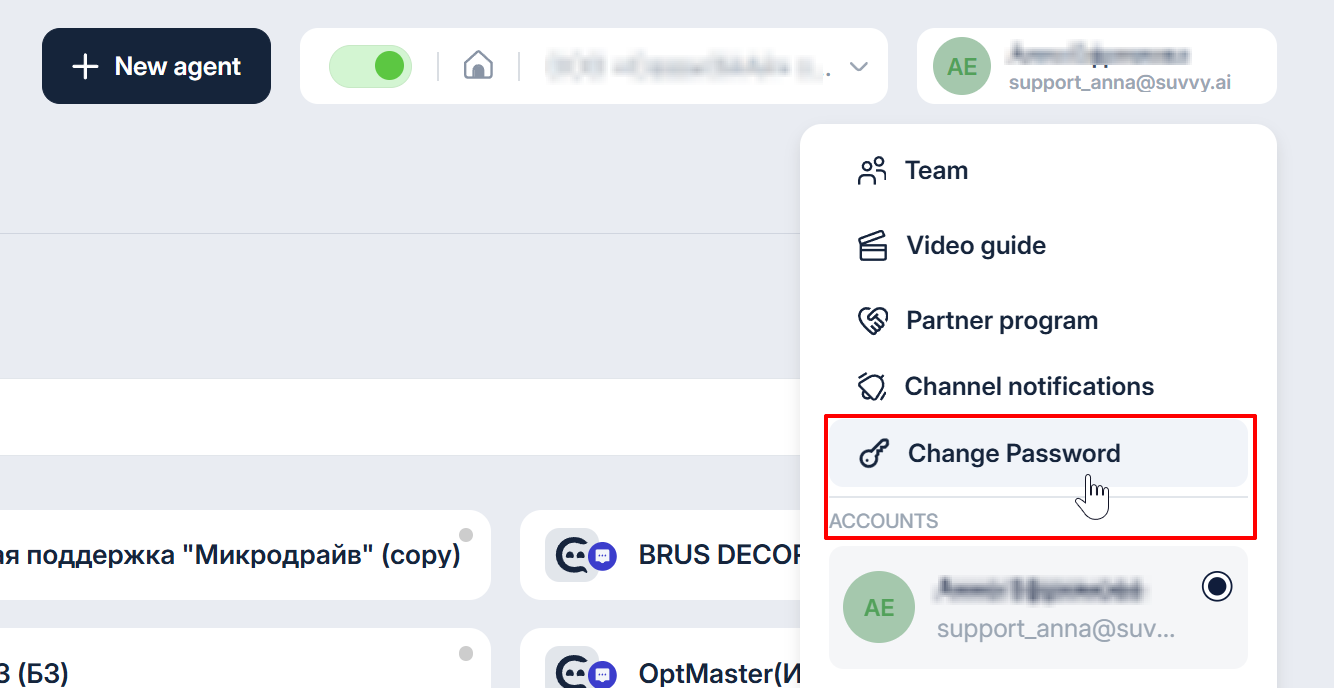
### Select the Change Password section
Click on your account email in the top right corner. From the drop-down menu, select "Change Password."
{% endstep %}
{% step %}
### Fill in the data in the window that appears
You need to enter your old password and the one you want to change to
{% endstep %}
{% step %}
### Compliance with safety rules
It's important that your password ensures the security of your account, so you need to create one that meets all the requirements on the screenshot:
{% endstep %}
{% step %}
### Click Change Password
{% hint style="warning" %}
Please note that the password cannot be changed more than 5 times per one minute.
{% endhint %}
{% endstep %}
{% step %}
### Password changed successfully!
{% endstep %}
{% endstepper %}