> For the complete documentation index, see [llms.txt](https://docs.suvvy.ai/en/llms.txt). Markdown versions of documentation pages are available by appending `.md` to page URLs; this page is available as [Markdown](https://docs.suvvy.ai/en/workflows/extract-text-from-file.md).
# Extract text from file
This functionality allows you to extract text from a file that the client sent in a dialog.
### What's it for?
* The client can send files in docx, pdf, rtf, txt or any other format;
* The bot will be able to process the file, or pass the result from the file to other action steps.
### Creating an action to extract text from a file
{% stepper %}
{% step %}
### Go to the “Workflows” section and click the “+ Add” button
{% endstep %}
{% step %}
### We choose "Extract text from file"
{% endstep %}
{% step %}
### Go to Settings
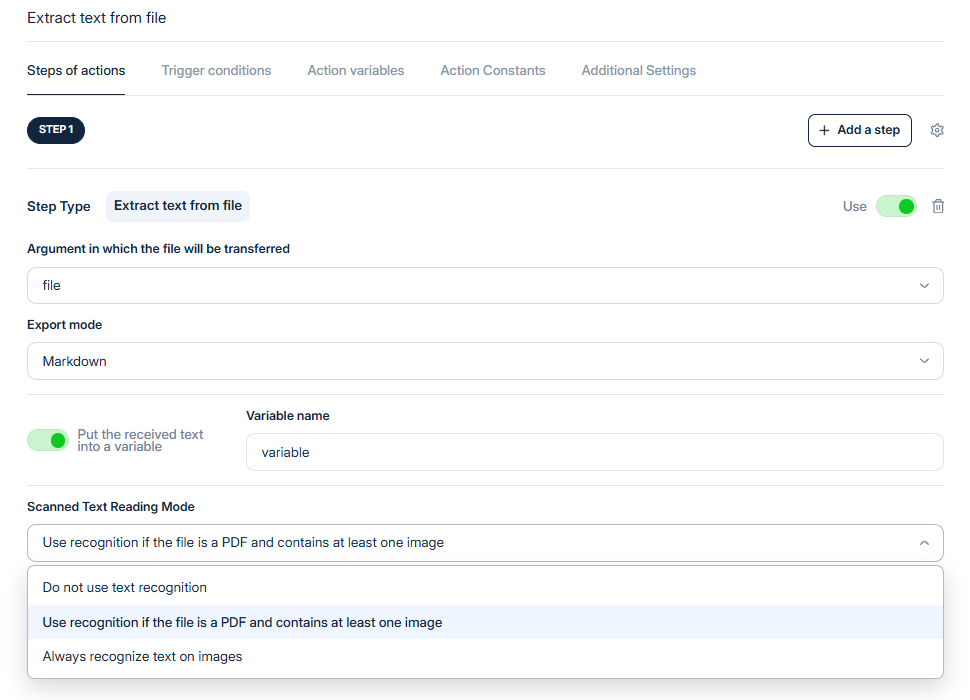
* **Action name —** a display name by which you can easily identify the required tool in the general list
* **+ Add Step —** you can trigger multiple webhooks or perform multiple other functions within a single action. For each new webhook, you must add an additional step using the "+ Add Step" button.
* ⚙️(*Bot response rules) —* with this setting, we have the option to choose which step's response will be passed to the bot - from the first, the last, or from all.
* **Argument in which the file will be transferred** — is a field for selecting the argument in which the file will be passed to the function.
* **Export mode —** here you can choose one of two options for extracting text from files:
1. HTML extraction
2. Markdown extraction
* **Put the received text into a variable —** enable the option so that after calling the webhook, the received text can be placed in a variable and passed to another function if necessary.
* **Scanned Text Reading Mode** — you can choose one of three modes for reading scanned text:
1. Do not use text recognition
2. Use recognition if the file is a PDF and contains at least one image
3. Always recognize text on images
{% endstep %}
{% step %}
### **Trigger conditions**
{% hint style="info" %}
To automatically generate a **Function Name**, fill in the **Action Name** field and press the **auto-generation button** to the right of the function name field.
{% endhint %}
* **Call by LLM model** — the function is called by the LLM model through instructions written to the bot.
* **Trigger call** — the function is called based on a pre-defined event when the specified conditions are met.
* **Function Name** — should describe the main idea of this action. Only English alphabet characters and underscores (\_) are allowed.
* **Function Description** — a description of what this action will do.
{% endstep %}
{% step %}
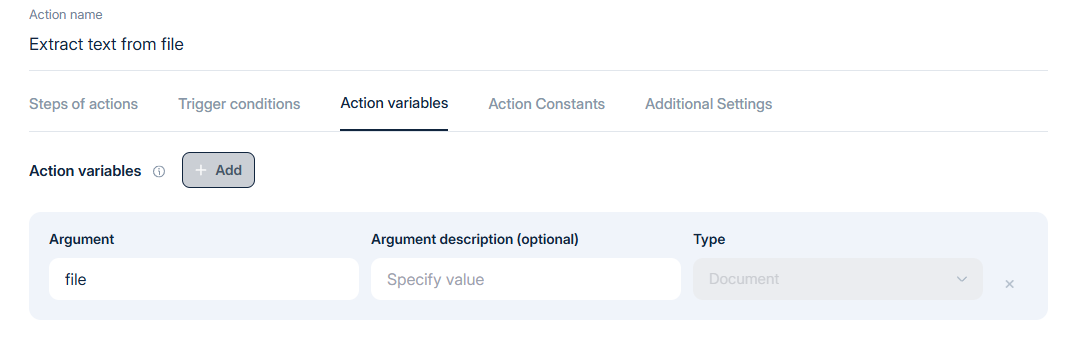
### **Action variables**
* **Argument** - since the argument for the function any File by design, in the **Argument** field we write **`file`**.
* **Argument Description** - this field is optional and serves as a description to avoid confusion if there are multiple arguments.
{% hint style="warning" %}
Ensure that the **argument** is written in English and without spaces. You can use English alphabet characters and underscores (`_`).
{% endhint %}
{% endstep %}
{% step %}
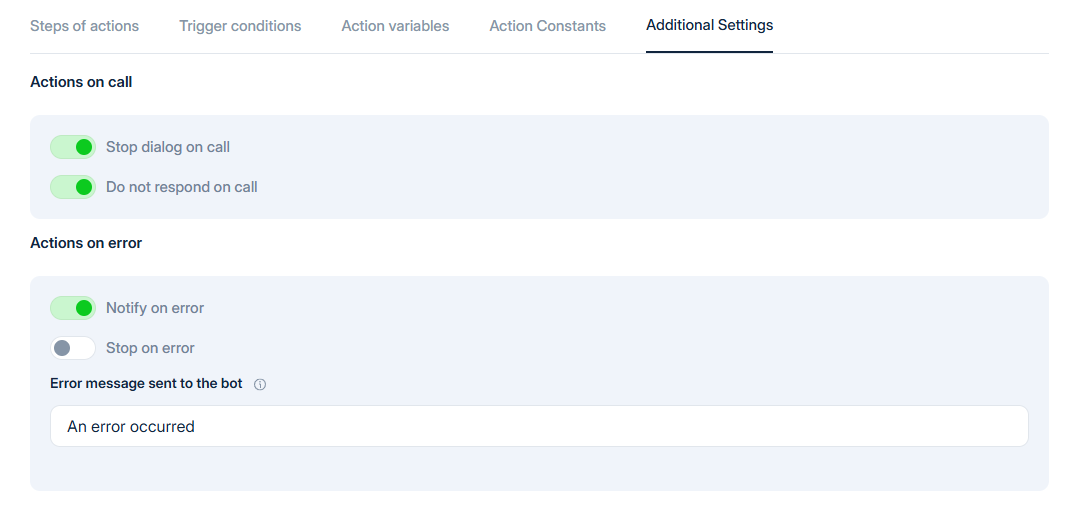
### Additional Settings
* **Stop dialog on call** — after calling the function to "Extract text from file", the dialogue will stop and the bot will stop responding.
* **Do not respond on call** — after calling the "Extract text from file" function, the dialogue will not be stopped, but no response will be sent to the dialogue.
* **Notify on error** — if a function call fails, you will receive a notification.
* **Stop on error** — if the function call fails, the dialog will stop.
* **Error Message** — what text will be returned to the bot in case of an error. We recommend writing something like "An error occurred"
{% endstep %}
{% endstepper %}